How I Merged My Two Substack Newsletters Into One Publication (Step by Step with Screenshots) | Lidiya Kesarovska
- [?] •inner workings: How I Merged My Two Substack Newsletters Into One Publication (Step by Step with Screenshots) | Lidiya Kesarovska
body
Hey, Substack besties. I just combined my 2 Substack publications, and I’m here to tell you all about it.
Here’s some context:
I run The 2-Hour Blogger - my main publication - where I teach blogging as a business, how to monetize with brand partnerships, and anything related to growing and running a blog. But I also had The $1K Newsletter, where I was writing about Substack growth by documenting my journey and sharing what works and what doesn’t, what I learn along the way, and how I plan to grow my newsletter.
I put a lot of thought into deciding to have 2 newsletters, created separate brands, About pages, welcome emails, publishing schedules, target readers, and a lot more. And I started posting.
It worked well for a while, but there were some downsides.
It can be confusing for people who just stumble upon 1 post of mine that belongs to 1 publication, or to those who assume I just have 1 newsletter (which is often the case).
Also, it’s easier to stay consistent when you publish in one place.
Plus, the topics overlap enough to be able to combine the newsletters.
So, I did my research, and the best way to approach this seemed to be this: creating a new section in my main publication, moving the existing content + subscribers from The $1K Newsletter to it + deleting the second publication.
There are also some actions to take in-between, but these are the main steps.
Let’s go through them if you’re curious how the process looks like.
This will be helpful to you if:
- You’re in the same situation and want to stop running 2 newsletters because they overlap, and instead simplify your content business by running just 1 publication;
- You want to cover a new topic on your Substack but want to separate it from the rest of your content;
- You’re just curious what I’m up to and like taking a look behind the scenes.
The 2-Hour Blogger is a reader-supported publication. To receive new posts and support my work, consider becoming a free or paid subscriber.
Subscribe
Step 1: Export your data.
Go to the Settings of the newsletter you want to remove, and find the Import/Export section. Then Export your data.

Step 2: Create a New Section.
Substack Sections are this powerful feature the platform offers that allows you to have different newsletters under the same publication.
Some creators have it for their podcast or for a different topic they cover. Subscribers can then opt in or out of emails from this Section (that happens on their account page).
Here’s the official guide by Substack on how Sections work.
In a nutshell, creating a new Section looks like this:
- Go to your main publications’ dashboard and click Settings;
- In the Sections tab, click ‘Add’;
- Upload the artwork and fill in the Section name and description (just like you would for a new publication);
- Below, you can choose how your sender name appears on emails;
- You can also hide posts from the homepage, add new subscribers by default (meaning that future subscribers will be getting posts from this Section as well as anything else published in the publication), and add all existing subscribers to this new Section.
Here’s what I did:
I copied all the details from The $1K Newsletter (artwork, name and description) because I simply want to move it from one place to another, not change anything about it.
For the sender name, I wrote Lidiya from The $1K Newsletter.
I chose to add new subscribers by default (and they will have the chance to opt out of posts on this topic), and I didn’t add the existing subscribers to this Section. After all, when they subscribed, they either didn’t know about The $1K Newsletter, or weren’t interested.

It then automatically shows up as a new tab in your publication’s menu, and if you’d like, you can disable it (from Settings > Navigation Bar).
Step 3: Move your posts.
Go to the Import/Export section of your main publication, and click Import Posts.
You’ll see this:
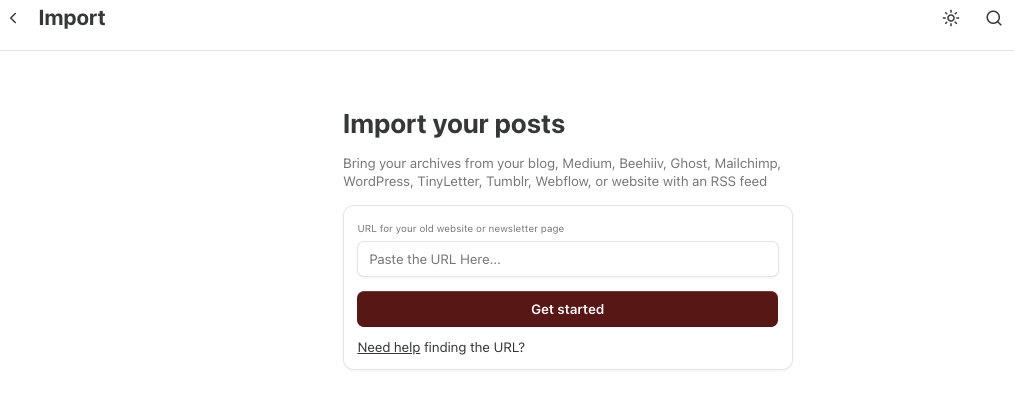
Add the URL from your 2nd publication.
In the next step, you’ll have the chance to choose the section to add it to (pick the newly created Section, of course).
You also have 2 more options to go for (if that’s necessary for you): to make the imported spots available only for paid subs, and to update the posts you’re about to import.
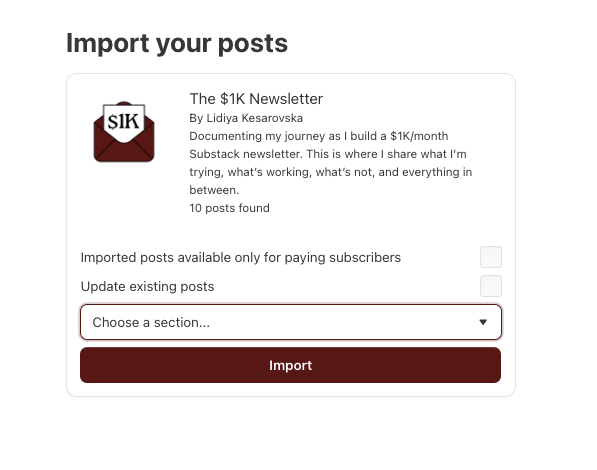
Now, I didn’t tick any of these boxes, and was still happy with the results. However, after hearing from others who went through the whole process, it seems like I probably should have chosen to update the posts.
But I had only around 10 posts to move, and I opened each manually to make 3 changes:
- add the subtitle (as it was missing);
- update the Subscribe buttons;
- assign the posts to the new Section.
Everything else for the content was the same, and I saved a ton of time. So thank you, Substack.
Of course, all the likes, comments and restacks for the articles are lost, but I knew that. It’s just 10 posts, so it’s okay.
Step 4: Let your subscribers know.
Substack doesn’t really offer a way to move subscribers from one publication to the Section of another one (not yet, at least). So this might be more of a manual process, unless you just want to add the subs from the second newsletter to the first one so they can receive all posts.
Here’s what I did:
You can see all your subscribers from the exported data, one of the files is of your posts, and the other one of your subs.
At the time of this transaction, I had just 21 subscribers to The $1K Newsletter, so that’s not such a big deal. But at the same time, it’s 21 people who trusted me, and who might be annoyed by the update.
First, I wanted to check how many of them subscribe to The 2-Hour Blogger too. Eight did, so I removed them from the list.
Now I had 13 people to inform about the changes.
I decided to add them to the main newsletter and tell them they can unsubscribe from any unrelated content. That happens thanks to the Welcome email for imported subscribers.
I updated it (you can find it in the Emails section in your publication’s settings), and explained the situation.

You can also contact them one by one and encourage them to subscribe (still, they’ll have to go to the Account settings and update their preferences to only receive notifications for the posts from the new Section).
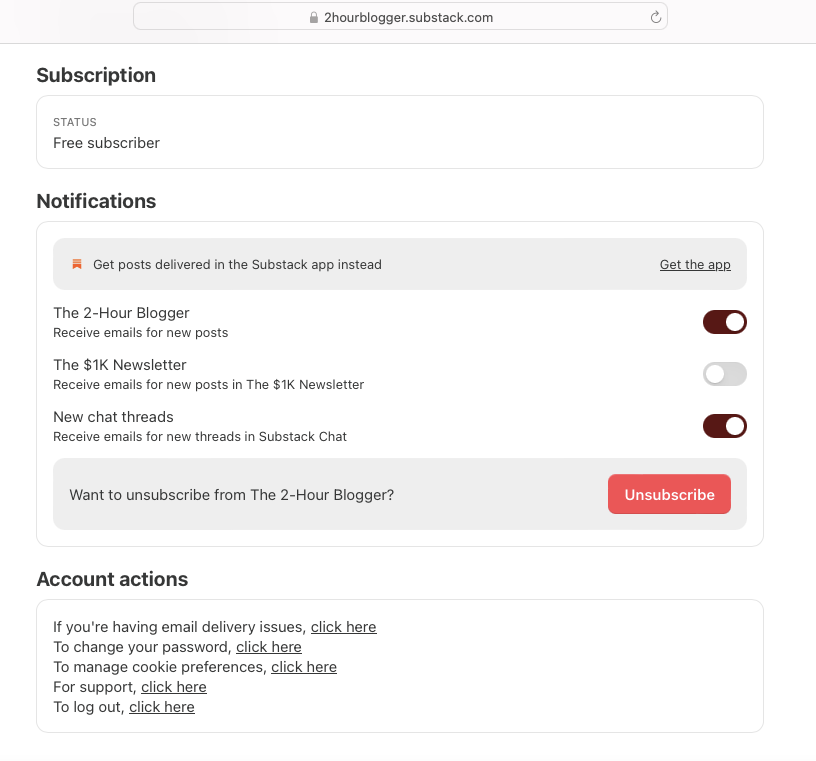
An easier way might be to just give them the link. That’s [yourpublicationname].substack.com/account
There they immediately see the options for your publication, and can quickly decide what to opt out of, or subscribe to.
Here’s how that looks like for me:
Step 5: Make any other necessary updates.
Update your About page, welcome page, and Welcome emails.
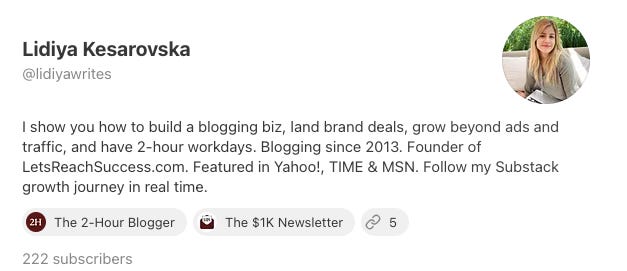
I also had to update my profile bio as it looked like this:
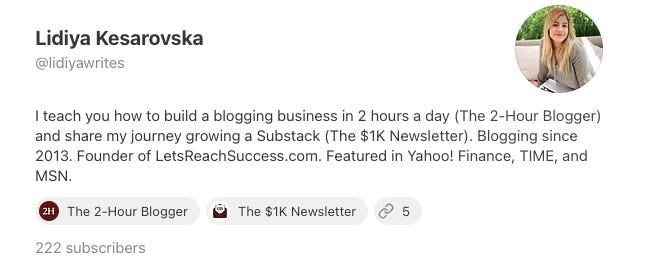
I no longer needed to mention publication names. So I changed it to this:
Depending on what else you have going on with your Substack, you might need to make more changes.
Step 6: Delete the second publication.
Once you’re sure you’ve completed all the steps, and have checked that everything is updated, the subscribers are importer and/or informed, and you’re going to fully focus on your main publication, you can delete the one you want removed.
You wouldn’t want new people to find it and subscribe to it, so deleting it might be the best option. But only after you’ve double-checked everything.
Optional next steps:
- Write a post about the transition.
- Email your whole list about it. Maybe some of your existing subscribers would like to receive posts from the new Section too.
- Start restacking your imported posts so they can get some traction again.
- Create a new publishing schedule. Running 1 publication is different than 2. So you can now decide how often to post, how often to cover each topic and in what order, when to have paid posts, etc.
More things to keep in mind:
- Importing subscribers can take a while (around 15 minutes). Just be patient.
- When you post a new article, you can choose to send it only to people in that Section, not to every subscriber. That’s practical, especially if you publish content often and don’t want to annoy your readers in their inboxes.
- I’m not a Substack expert, so if you notice any mistake above, please let me know. I’m here to learn.
So that’s how I consolidated my Substack newsletters. I hope you enjoyed this.
Let me know if you have any questions.